Test Case Detail
The test case detail page provides the main editing and review surface for a single case.
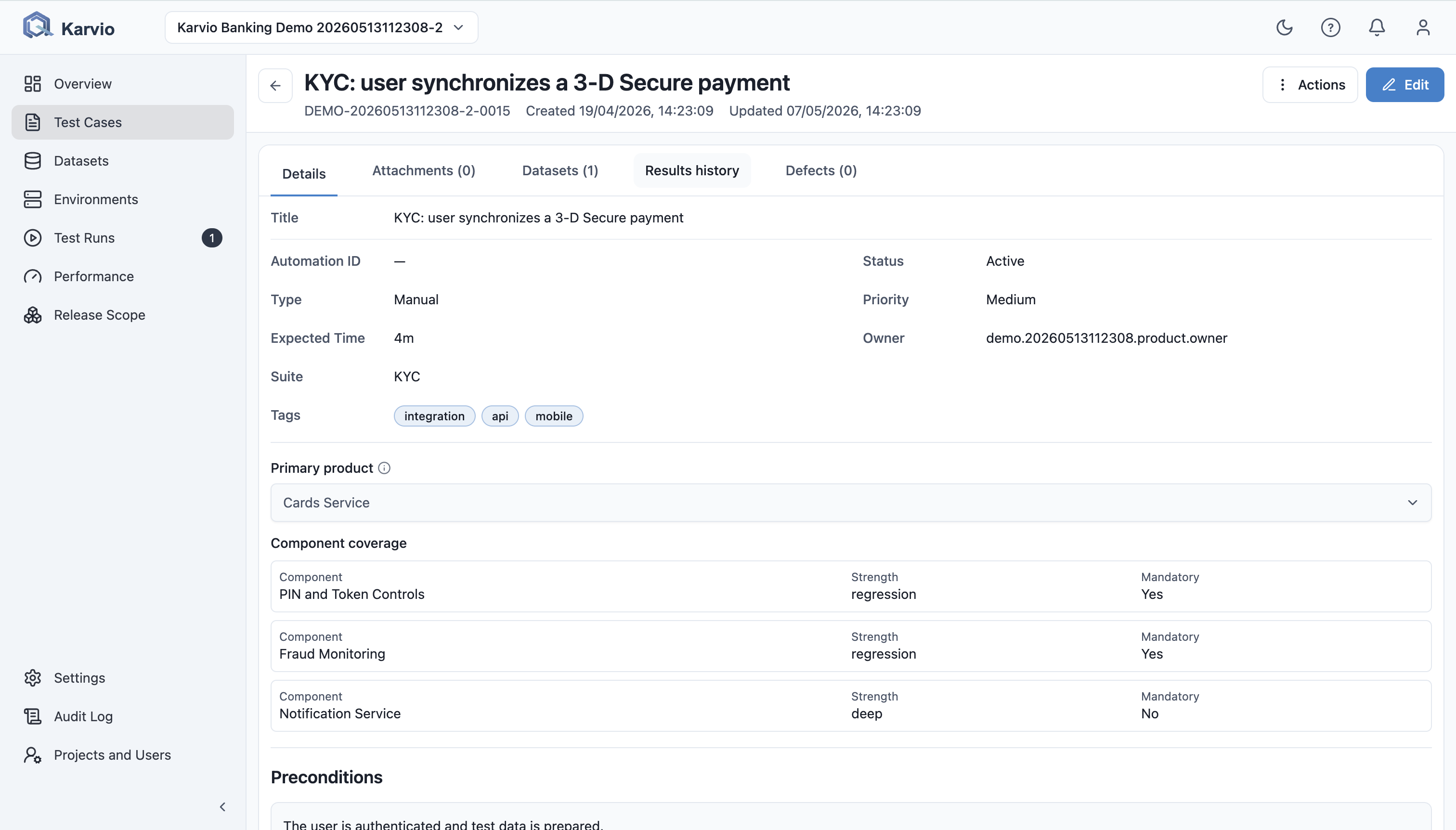
Header Actions
In view mode, users can:
Editthe case;Actions -> Clone Test Case;Actions -> AI Reviewwhen AI is enabled;Actions -> Export as ...to download the case in a TMS-compatible format;Actions -> Archive;Actions -> Delete.
In edit mode, users can:
- upload a case-level attachment;
- save changes;
- cancel editing.
Details Tab
The Details tab shows and edits:
- title;
- template type;
- automation ID;
- status;
- type and priority;
- expected time;
- tags;
- owner;
- suite;
- product and component coverage;
- preconditions;
- text steps and expected result for text cases;
- structured steps for step-based cases;
- raw automated test content for automated cases.
The backend validates the template contract. Text cases cannot submit raw_test; step cases keep steps as separate records; automated cases require raw_test and do not accept an expected-result field.
AI Review
AI review analyzes an existing case and suggests improvements. Users can apply individual fields instead of accepting the whole result.
Example: a QA lead opens an old critical case before a release and sees that preconditions do not specify test data and the expected result is too broad.
Attachments Tab
Attachments are used for:
- images in preconditions, steps, and expected results;
- durable reference files;
- downloads from the case;
- cleanup when the user has permission.
Step attachments are shown separately from case-level attachments, but the tab count includes both.
Datasets Tab
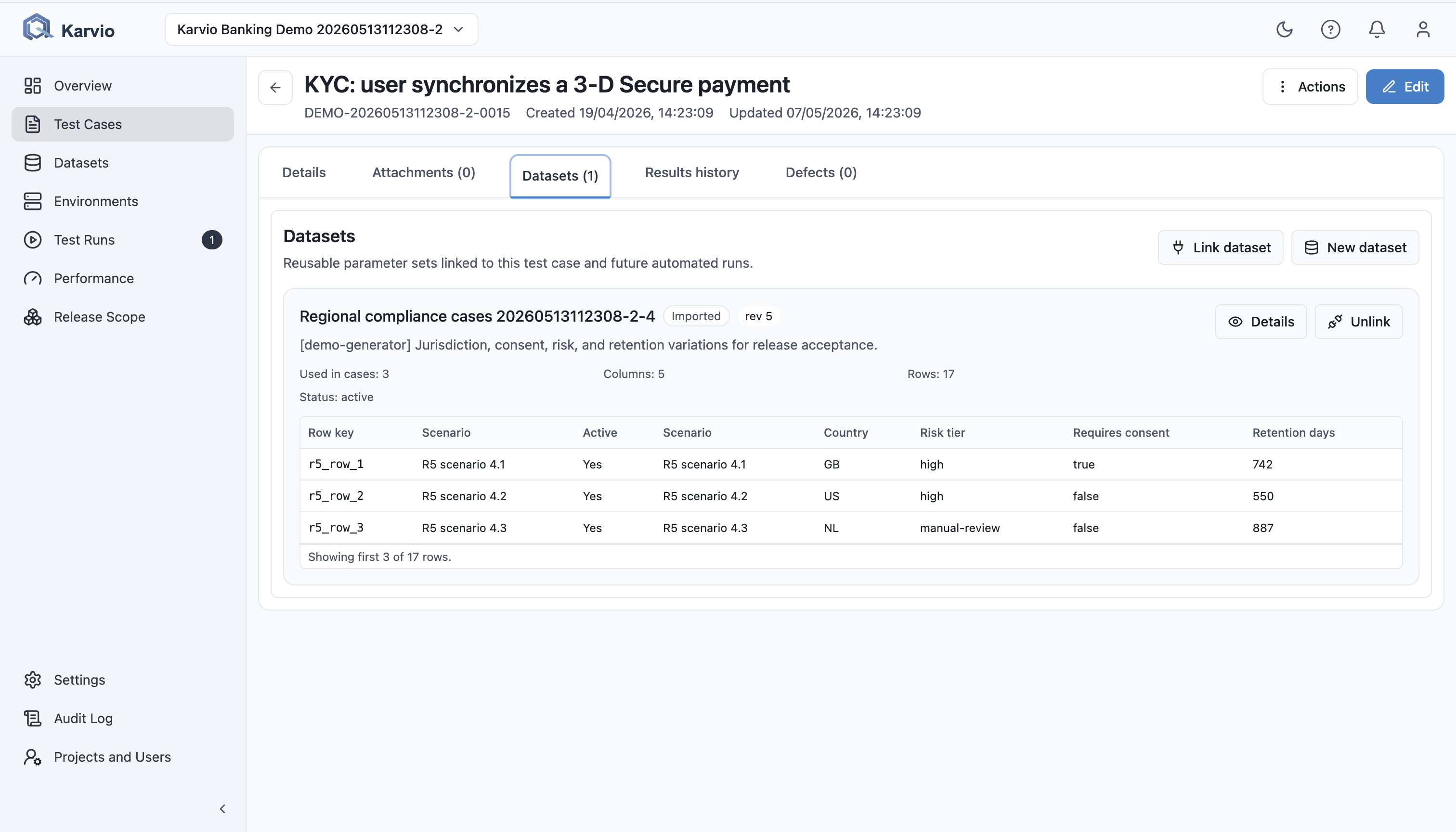
The Datasets tab shows parameter sets linked to the case. Users can:
- link an existing dataset;
- create and link a new dataset;
- view dataset details;
- edit a linked dataset;
- unlink a dataset from the case;
- delete the dataset from the project if they have the lead role;
- preview the first rows of the current revision.
The UI creates bindings in follow_latest mode and selects all rows. The API supports pin_revision and row subsets.
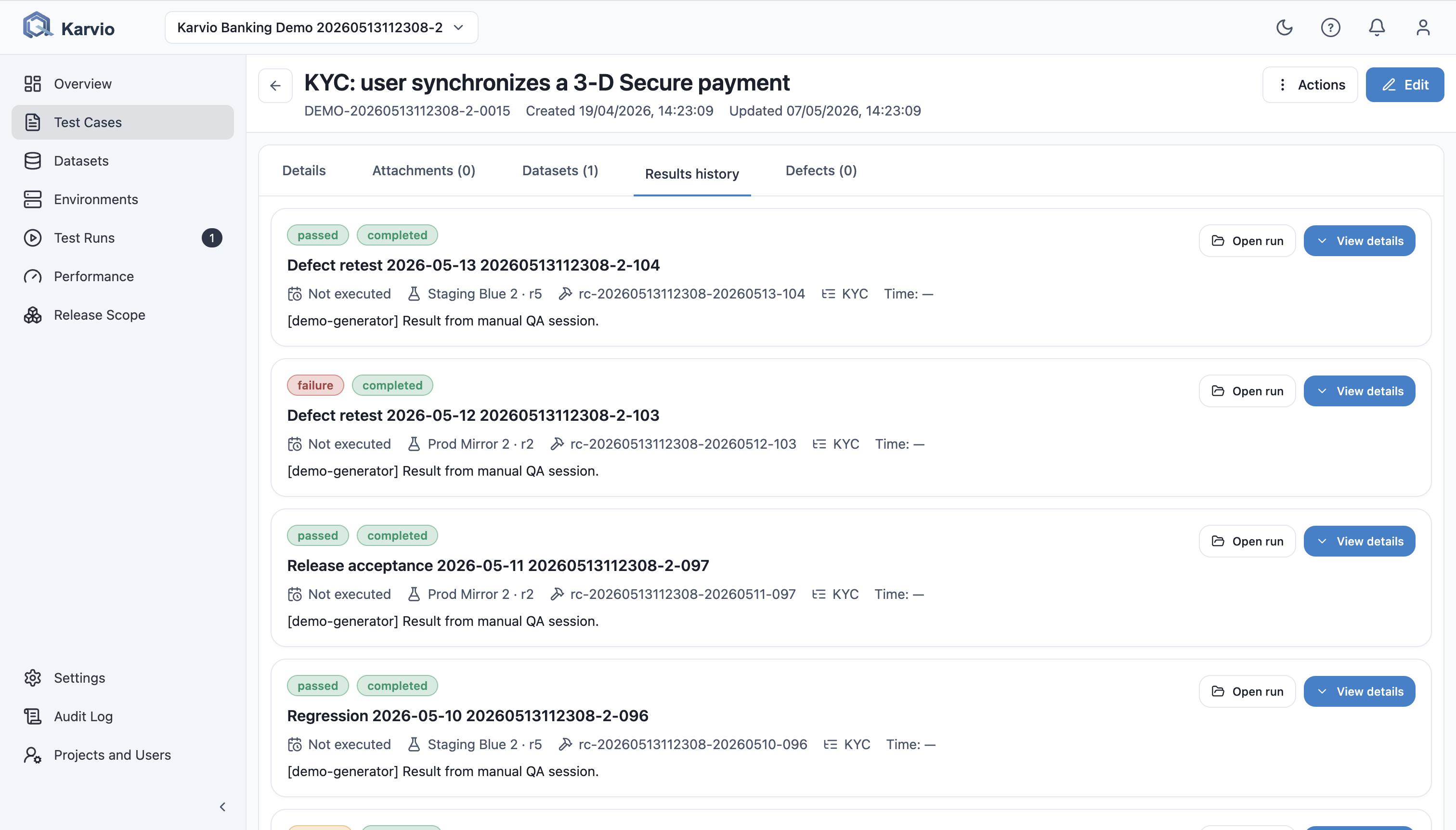
Results History Tab
Results History shows recent executions of this case:
- result status;
- test run status;
- run name and
Open runlink; - environment and environment revision;
- build;
- suite;
- execution time;
- comment;
- lazy-loaded result details.
Expanded details include execution timestamp, duration, executor, assignee, actual result, stdout, stderr, defect IDs, status-change history, and downloadable artifacts.
Defects Tab
The Defects tab shows linked external issues. When Jira is configured, users can link or unlink issues so the test documentation and bug tracker stay connected.
Clone Test Case
Clone creates a new draft from an existing case. The wizard allows changes to:
- title;
- type;
- priority;
- owner;
- suite;
- expected time;
- tags.
Fields, steps, and attachments are copied. After creation, the user lands on the new case.
Export
Actions -> Export as ... downloads this single case in a format accepted by popular test management systems: CSV (TestRail / Zephyr / qTest), TestLink XML, Xray / Zephyr JSON, JUnit XML, or JSON. The file is named after the case key, for example TC-1042.xml.
To export many cases at once, use the Export control in the test cases toolbar. Selection and filter scope rules are described in Bulk Operations, Permissions, and API.