Jira Integration
Karvio integrates with Jira to let you link test results to Jira issues, create defects directly from failed test items, and sync test data between the two systems.
Set up Jira before a release cycle starts so failed run items can be converted into actionable defects without copying context manually.
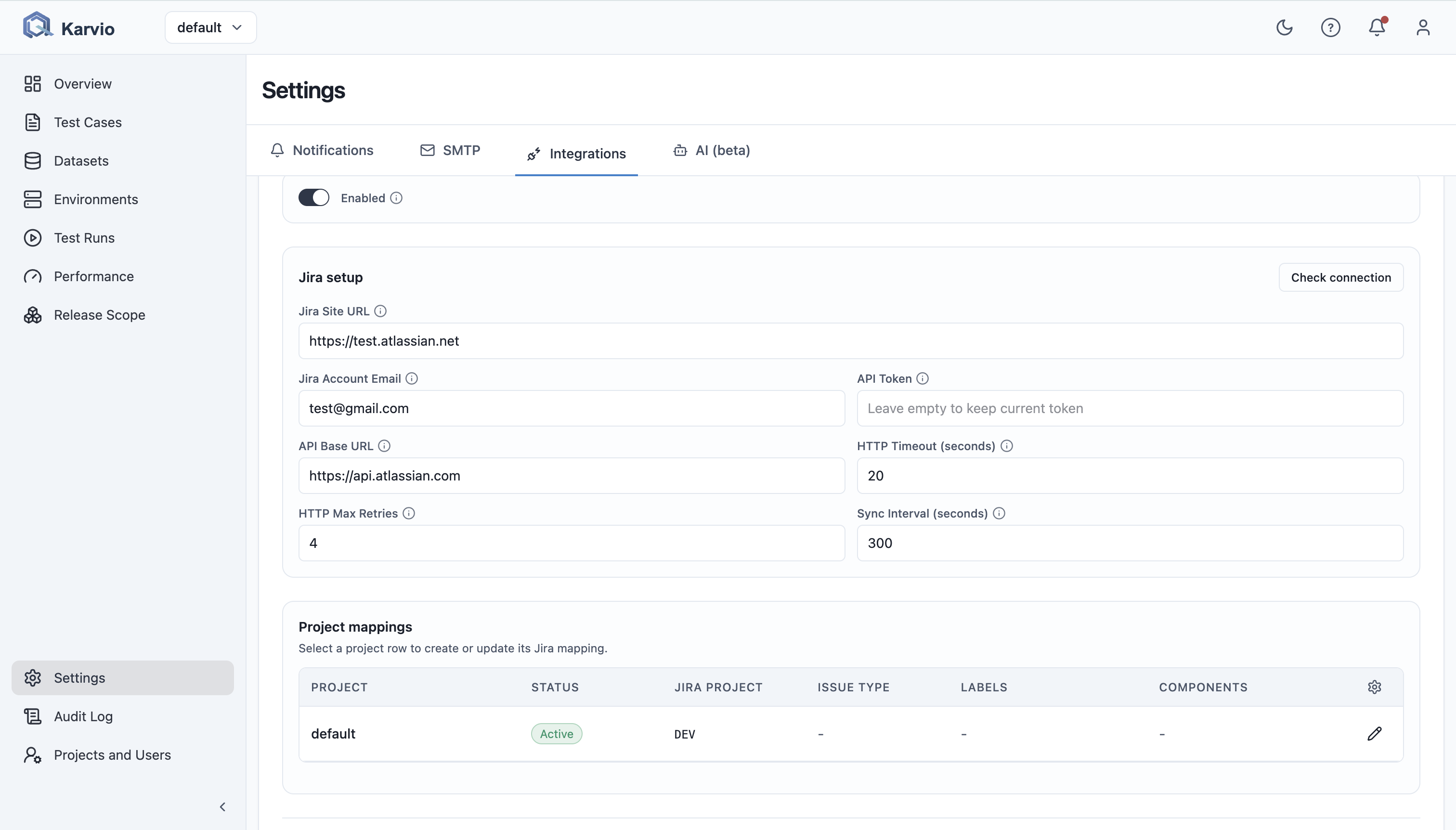
Overview
The integration works at two levels:
| Level | Description |
|---|---|
| Connection | A system-wide Jira connection (API credentials) |
| Project Mapping | A link between a Karvio project and a Jira project |
You need at least one connection and one project mapping before you can create or link issues.
Step 1 – Create a Jira Connection
Connections are managed by system administrators.
- Go to Settings → Integrations → Jira.
- Click New Connection.
- Fill in the details:
| Field | Description |
|---|---|
| Name | A label for this connection, e.g., Jira Cloud – ACME |
| Jira URL | Your Jira base URL, e.g., https://acme.atlassian.net |
| Username / Email | The Jira account used for API access |
| API Token | A Jira API token (see note below) |
- Click Save and Test Connection.
If the connection is successful, you see a confirmation message. If it fails, check the URL and credentials.
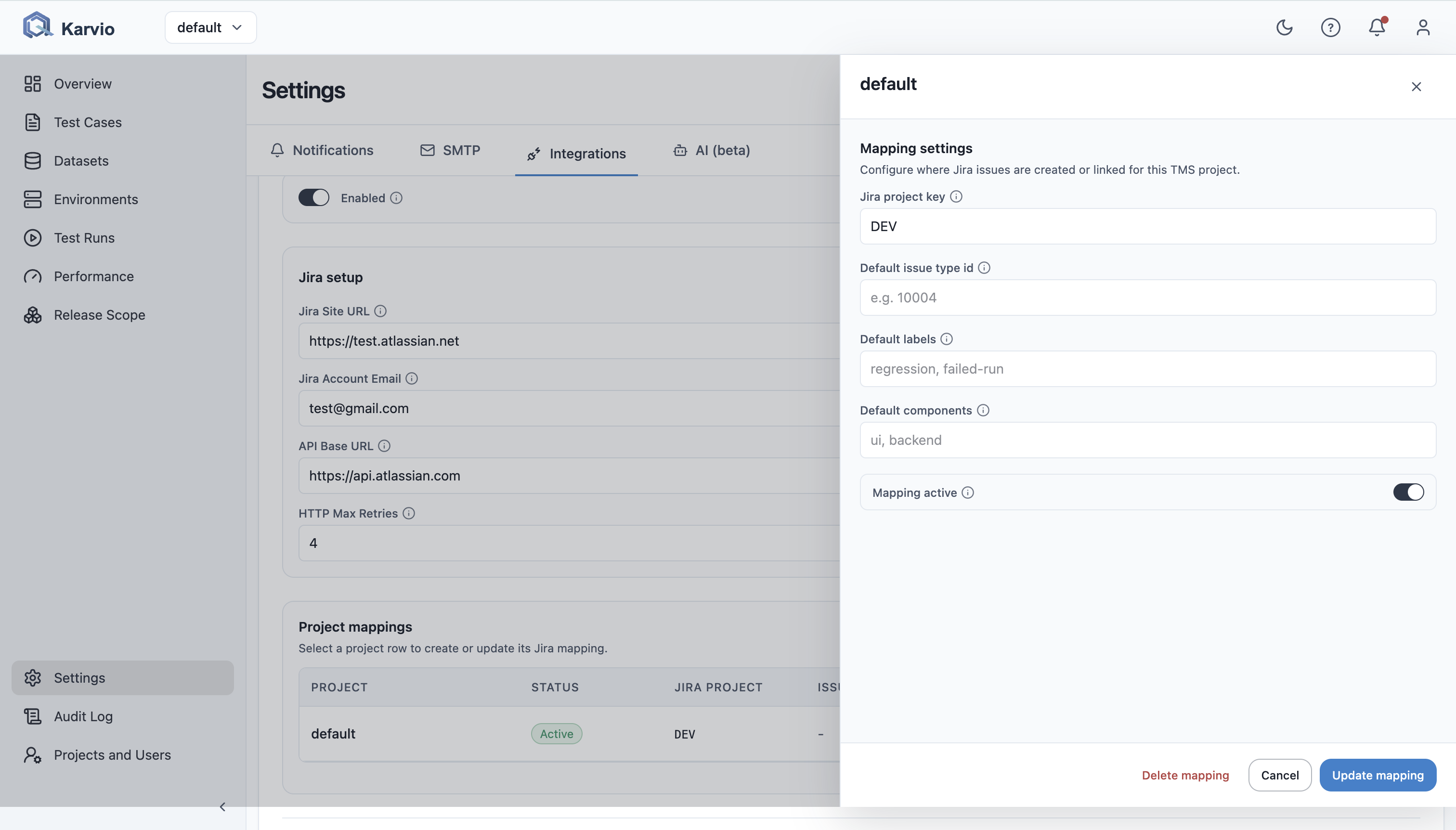
Step 2 – Map a Karvio Project to a Jira Project
Project mappings are configured per Karvio project.
- Open the Karvio project.
- Go to Settings → Integrations → Jira.
- Click Add Mapping.
- Select:
- Connection – the Jira connection created in Step 1
- Jira Project – the target Jira project
- (Optional) Configure field mappings – how Karvio fields map to Jira issue fields.
- Click Save.
Linking Test Cases to Jira Issues
You can link an existing Jira issue to a test case:
- Open the test case.
- In the Defects or Links section, click Add Jira Link.
- Enter the Jira issue key (e.g.,
PROJ-123). - Click Link.
The linked issue is displayed on the test case with its current status.
Creating a Jira Issue from a Failed Test
When a run item fails, you can create a Jira defect directly:
- Open the failed run item.
- Click Create Jira Issue.
- The form pre-fills with:
- Summary from the test case name
- Description from the test result comment
- Linked test case reference
- Adjust any fields as needed.
- Click Create.
The new issue key is linked to the run item automatically.
Bulk Issue Creation
To create Jira issues for multiple failed items at once:
- In a test run, select multiple failed run items using the checkboxes.
- Click Create Jira Issues in the bulk action toolbar.
- Review the summary and confirm.
Refreshing Jira Data
Jira issue statuses are cached to reduce API calls. To force a refresh:
- Open the test case or run item with the Jira link.
- Click Refresh next to the linked issue.
Field Mappings
Field mappings control which Karvio values populate which Jira fields when creating an issue. Common mappings:
| Karvio Field | Jira Field |
|---|---|
| Test Case Name | Summary |
| Run Comment | Description |
| Priority | Priority |
| Project | Project |
| Assignee | Assignee |
To edit field mappings:
- Open Settings → Integrations → Jira.
- Click the project mapping.
- Edit the Field Mappings section.
- Click Save.
Managing Connections
Edit a Connection
- Go to Settings → Integrations → Jira.
- Click the connection name.
- Update the fields and click Save.
Delete a Connection
Warning
Deleting a connection removes all project mappings that use it. Existing issue links on test cases and run items are preserved but can no longer be refreshed.
- Click the connection in the list.
- Click Delete.
- Confirm.
Troubleshooting
| Symptom | Check |
|---|---|
| Connection test fails | Jira URL, API token, account permissions, and network access from the Karvio backend. |
| Project is missing from mapping list | The Jira account may not have Browse Projects permission. |
| Issue creation fails | Required Jira fields may be unmapped or invalid for the selected issue type. |
| Issue status looks stale | Refresh the linked issue or wait for the next sync task. |
| Bulk creation creates incomplete issues | Review field mappings and default values before using bulk issue creation. |