Qarvio

Qarvio is a self-hosted test management system for QA teams. It helps teams maintain a test case library, plan test campaigns, execute test runs, import automated test results, track environments, manage release scope, monitor performance, connect work to Jira, send notifications, and audit product changes.

This documentation is written for end users, QA leads, project administrators, and engineers who deploy Qarvio in their own infrastructure.

Quick Start for Users

  1. Open the Qarvio web interface.
  2. Sign in with the account provided by your administrator.
  3. Select a project from the top bar.
  4. Start with Overview to understand the current project state.
  5. Create or import test cases in Test Cases.
  6. Group checks into Test Plans.
  7. Create a Test Run, select an environment, build, milestone, and assignee.
  8. Execute the run, update result statuses, and link defects to Jira when needed.

Core Concepts

Entity Purpose
Project A workspace for a team, product, or delivery stream. Most data and permissions are scoped to a project.
User A Qarvio account. Users can be regular users or global administrators.
Project member A user assigned to a project with the viewer, tester, lead, or manager role.
Test Case A reusable test definition with steps, expected results, priority, owner, tags, attachments, and component coverage.
Suite A folder-like hierarchy for organizing test cases.
Dataset Tabular test data for parameterized scenarios.
Environment A test environment definition with topology and revision history.
Milestone A release milestone with dates, owner, linked plans, linked runs, and execution summary.
Test Plan A planned set of test cases for a campaign, release, smoke check, or regression cycle.
Test Run An execution of selected test cases against a specific environment, build, and milestone.
Performance Run A load, benchmark, or system performance result with metrics, artifacts, baseline comparison, and verdict.
Release Scope A product and component catalog with risk scoring, dependencies, and test coverage.

Roles and Permissions

Qarvio uses global roles and project membership roles.

Global roles:

  • admin - full access to users, projects, system settings, Jira, SMTP, and audit logs.
  • user - baseline account role. Access to project data is controlled through project membership.

Project roles:

  • viewer - can view project data.
  • tester - can work with test cases, test runs, and execution results.
  • lead - can manage project-level settings, notifications, and team testing artifacts.
  • manager - can manage project workflow, project members, and reporting.

The exact action set depends on the current page and API permissions. If an action is unavailable, check the project role or contact an administrator.

Product Navigation

After signing in, users work with the top bar and the left project navigation.

Top bar:

  • Qarvio logo and link to the current project home page;
  • project switcher;
  • light and dark theme switch;
  • product version and information dialog;
  • notification center;
  • user menu with password change, API key management, and sign out.

Project navigation:

  • Overview - project dashboard;
  • Test Cases - test case library;
  • Datasets - reusable test data sets;
  • Environments - test environments and revisions;
  • Test Plans - planned test campaigns;
  • Test Runs - execution tracking;
  • Performance - performance runs and artifacts;
  • Release Scope - products, components, risks, and coverage;
  • Settings - notifications, SMTP, and integrations, depending on role;
  • Audit Log - change history;
  • Projects and Users - global administration, available to administrators.

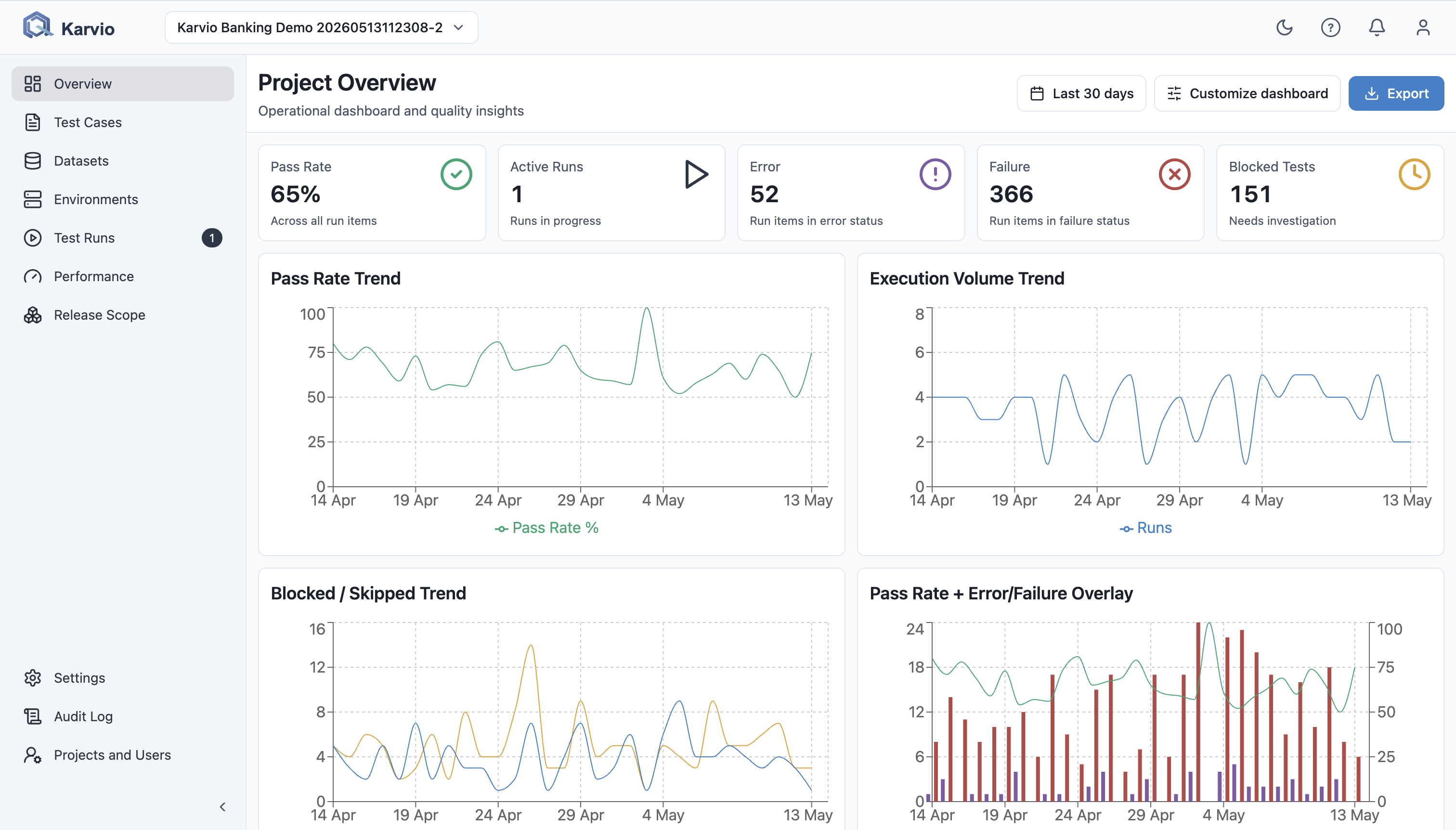
Overview

Overview is the project dashboard. It gives teams a daily view of current activity and test health.

Capabilities:

  • view key project metrics;
  • review dashboard widgets for testing state and recent activity;
  • jump to recently changed artifacts;
  • customize dashboard widget visibility;
  • assess current state across test runs, test cases, and release readiness.

Recommended use: open Overview at the start of the day to identify active runs, recent changes, and areas that need attention.

Test Cases

Test Cases is the main test library.

Capabilities:

  • create, edit, view, clone, and archive test cases;
  • organize cases in a suite tree;
  • support manual and automated test cases;
  • use text, structured steps, or automated-code templates;
  • manage title, key, owner, priority, status, type, tags, preconditions, and estimated time;
  • store steps and expected results;
  • store raw automated test content or code snippets;
  • set automation_id for automated result matching;
  • search, filter, sort, and paginate;
  • run bulk actions: delete, move, set status, set owner, set priority, and add tags;
  • upload attachments to test cases and steps;
  • view result history for a case;
  • link cases to Jira issues;
  • map cases to products and components in Release Scope;
  • preview case details without leaving the list.

Test case statuses:

  • draft - not ready for regular execution;
  • active - ready to use;
  • archived - removed from active work.

Priorities:

  • low;
  • medium;
  • high;
  • critical.

Types:

  • manual;
  • automated.

Suites

Suites are the folder hierarchy inside Test Cases.

Capabilities:

  • structure the test library by product area, feature, module, or scenario type;
  • move cases between suites;
  • filter cases by suite;
  • use suites when building test plans.

Recommended structure: use top-level suites for major product areas and lower levels for components or user workflows.

Datasets

Datasets stores tabular data for parameterized test scenarios.

Capabilities:

  • create datasets manually;
  • define columns with key, display name, data type, required flag, default value, and scenario label flag;
  • define rows with row_key, scenario label, active flag, and arbitrary values;
  • version dataset changes with revisions;
  • review revision history;
  • bind datasets to test cases;
  • follow the latest dataset revision or pin a specific revision;
  • select all rows or a subset of rows for a test case;
  • use source types: manual, pytest_parametrize, and imported;
  • archive and delete datasets.

Example: one “Authorization check” test case can be bound to a dataset where each row describes a user role, account state, and expected access level.

Environments

Environments describes test infrastructure and keeps a revision history.

Capabilities:

  • create environments with name, kind, status, tags, and use cases;
  • describe topology:
    • load generators;
    • system under test;
    • supporting services;
  • describe nodes with host type, role, provider, region, endpoint, count, resources, tags, and metadata;
  • store environment revisions;
  • snapshot the environment when a test run is created;
  • filter environments by attributes;
  • use environments in test runs and performance runs.

Why revisions matter: if an environment changes after a run starts, Qarvio can still show the environment snapshot used for that run.

Milestones

Milestones are available under Release Scope and represent release targets or delivery checkpoints.

Capabilities:

  • create a milestone with name, description, owner, release label, start date, and target date;
  • use statuses planned, active, completed, and archived;
  • link milestones to test plans and test runs;
  • view summary data: plans, planned cases, runs, execution statuses, and pass rate;
  • detect overdue milestones.

Recommended workflow: create a milestone for a release, attach plans and runs to it, then use the milestone details to track release readiness.

Test Plans

Test Plans helps teams assemble a testing campaign from suites and individual cases.

Capabilities:

  • create plans manually;
  • add suites and individual test cases;
  • manage plan tags and description;
  • link plans to milestones;
  • generate plans from Release Scope;
  • preview generated plans before saving;
  • create test runs from plans;
  • optionally start a run immediately after creating it;
  • search and filter plans.

Plan sources:

  • manual - assembled by a user;
  • product_generated - generated from product catalog, component risks, and coverage data.

Generation modes:

  • smoke;
  • regression;
  • full.

Test Runs

Test Runs is used to execute checks and track results.

Capabilities:

  • create a run manually or from a test plan;
  • set name, description, environment, milestone, build, and assignee;
  • add and remove test cases in a run;
  • keep a snapshot of each test case and environment at execution time;
  • use run statuses: not_started, in_progress, completed, and archived;
  • use run item statuses: untested, in_progress, passed, error, failure, blocked, skipped, xfailed, and xpassed;
  • update results one by one or in bulk;
  • view progress and pass rate;
  • inspect run item details in a side panel;
  • import JUnit XML results;
  • match imported automated tests by automation_id and name;
  • create missing test cases from imported results;
  • link run cases to Jira issues;
  • create Jira issues from one or more failed or blocked run cases;
  • review result history.

Recommended workflow:

  1. Create a test plan for a release or regression cycle.
  2. Create a test run from the plan.
  3. Select the environment, milestone, and build.
  4. Move the run to in_progress.
  5. Update run item statuses while testing.
  6. Create or link Jira issues for defects.
  7. Complete the run after results are processed.

JUnit XML Import

Qarvio supports automated result import from JUnit XML.

Capabilities:

  • import a file into an existing test run;
  • run a dry run before applying changes;
  • match results to test cases by automation_id;
  • fallback to matching by test name;
  • create new test cases for unknown automated tests;
  • review import summary: matched, created, updated, unmatched, ambiguous, and errors;
  • store source filename and import status.

Recommendation: keep a stable automation_id in Qarvio test cases and automated tests. This reduces matching errors when test names change.

Performance

Performance stores load, benchmark, and system performance results.

Capabilities:

  • create performance runs with service, environment, scenario, load profile, branch, commit, build, tool, and version;
  • support load kinds: http, cpu, ram, disk_io, and benchmark;
  • use statuses running, incomplete, and completed;
  • use verdicts green, yellow, and red;
  • view summary metrics: throughput, error rate, p50, p95, p99, peak VUs, and checks;
  • inspect transactions with throughput, p95, error rate, logs, and artifacts;
  • view error buckets;
  • configure baselines and compare metrics;
  • mark a run as baseline;
  • archive runs;
  • import artifacts;
  • run preflight analysis for uploaded files;
  • compare runs;
  • inspect environment snapshots.

Supported import sources:

  • k6 JSON;
  • Locust CSV;
  • pytest-benchmark JSON;
  • ZIP archives containing supported artifacts.

Release Scope

Release Scope connects product structure, risk, and test coverage.

Capabilities:

  • maintain a product catalog;
  • maintain a component catalog;
  • manage owners, descriptions, keys, tags, and statuses;
  • score component risk using:
    • business criticality;
    • change frequency;
    • integration complexity;
    • defect density;
    • production incident score;
    • automation confidence;
  • calculate risk score and risk level: low, medium, high, and critical;
  • model component dependencies;
  • link test cases to products and components;
  • set coverage type: direct, indirect, integration, and e2e;
  • set coverage strength: smoke, regression, and deep;
  • view coverage summary: uncovered components, high-risk uncovered components, and mandatory release cases;
  • generate test plans from risk and coverage data.

Recommended workflow: create products and components, score risk, and link test cases to components. Qarvio can then generate more meaningful smoke, regression, and full plans.

Jira Integration

Qarvio supports Jira integration.

Capabilities:

  • enable or disable Jira at the system level;
  • configure site URL, email, and API token;
  • map a Qarvio project to a Jira project key;
  • configure default issue type, labels, and components;
  • link test cases, test runs, and run cases to Jira issues;
  • create Jira issues from run cases;
  • create or link issues in bulk for multiple run cases;
  • synchronize Jira snapshot fields: status, summary, priority, and assignee;
  • refresh Jira links manually.

Jira setup requires administrator permissions or a role allowed to manage integration settings.

Notifications

Qarvio supports email, Slack, and Mattermost notifications.

Events:

  • test_run_report - test run report;
  • alerting - alerts and important events.

Channels:

  • Email through SMTP;
  • Slack webhook;
  • Mattermost webhook.

Capabilities:

  • configure SMTP host, port, username, password, from email, from name, reply-to, TLS/STARTTLS, and timeout;
  • send a test SMTP email;
  • configure project-level notification rules;
  • enable or disable each channel independently;
  • manage email recipients;
  • configure webhook URL and channel name for Slack or Mattermost;
  • send test notifications;
  • use the in-app notification center in the top bar.

Audit Log

Audit Log shows change history and helps investigate actions.

Capabilities:

  • view user and system events;
  • filter and sort audit records;
  • inspect event details;
  • record success or fail outcomes;
  • configure retention with AUDIT_RETENTION_DAYS;
  • process audit events through background tasks.

Administrators can view global audit data. Project members can view project-scoped audit data when allowed by access policies.

Projects and Users

Projects and Users is available to administrators.

Capabilities:

  • create, edit, and disable users;
  • reset user passwords;
  • create and edit projects;
  • add and remove project members;
  • assign project roles;
  • review project membership;
  • open project detail pages.

The first bootstrap creates the admin user and the default project.

User Profile and API Keys

The user menu provides:

  • password change;
  • API key management;
  • key prefix, hint, creation date, rotation date, and last-use data;
  • API key creation, rename, and deletion.

An API key secret is displayed only once when created. Store it in a secure secret manager.

Reports and Exports

Qarvio includes a backend reporting module.

Capabilities:

  • project and test run summary reports;
  • JSON export;
  • XML export;
  • PDF export;
  • reporting data for release quality and test campaign analysis.

The exact export buttons available in the UI depend on the current screen and user permissions.

Attachments

Attachments can be used for test cases, steps, and run cases.

Capabilities:

  • upload files;
  • store files in a local Docker volume;
  • attach files to owners: test case, step, draft step, or run case;
  • clean up related attachments when an owning entity is deleted, where supported by business logic.

In the production Compose stack, attachments are stored in the attachments_data volume.

Production Deployment with Docker

Requirements

  • Docker;
  • Docker Compose plugin;
  • Linux server or VM;
  • domain name and HTTPS termination through an external reverse proxy if Qarvio is exposed outside the host;
  • access to the GitHub repository or prebuilt container images.

Production Stack Services

docker-compose.prod.yml starts:

Service Purpose
postgres PostgreSQL 16 for application data.
redis Redis 7 as the Celery broker.
backend FastAPI API. It applies Alembic migrations on startup.
celery-worker Background jobs for imports, notifications, and synchronizations.
frontend Nginx serving the React UI.

The production frontend listens on 127.0.0.1:8080:8080. This is a safe default for a server that uses an external reverse proxy. Change the binding only when you intentionally want to expose the port directly.

Prepare Configuration

Create the production config:

cp config.example config.prod

Edit config.prod.

Minimum required settings:

Variable Value
POSTGRES_DB Database name. tms is fine for a default deployment.
POSTGRES_USER PostgreSQL user.
POSTGRES_PASSWORD Strong database password.
DATABASE_URL Database connection string. In Docker it is usually postgresql+psycopg://USER:PASSWORD@postgres:5432/DB.
ADMIN_PASSWORD Initial password for the admin user.
AUTH_SECRET Long random secret for JWT and session security.
APP_BASE_URL Public Qarvio URL.
CORS_ORIGINS Allowed frontend origins.
VITE_API_BASE_URL API URL used by the browser. Behind a reverse proxy this is usually /api/v1.

Generate AUTH_SECRET:

openssl rand -base64 64

Production recommendations:

  • use SESSION_COOKIE_SECURE=true with HTTPS;
  • use LOG_JSON=true for centralized logging;
  • keep METRICS_ENABLED=true if Prometheus should scrape /metrics;
  • keep BOOTSTRAP_ENABLED=false and run bootstrap explicitly;
  • keep config.prod out of public access and do not commit it.

Start the Production Stack

docker compose -f docker-compose.prod.yml --env-file config.prod up -d --build

Check status:

docker compose -f docker-compose.prod.yml --env-file config.prod ps
docker compose -f docker-compose.prod.yml --env-file config.prod logs -f backend

Create initial data:

docker compose -f docker-compose.prod.yml --env-file config.prod exec backend python -m scripts.bootstrap

After bootstrap:

  • username: admin;
  • password: the ADMIN_PASSWORD value from config.prod;
  • initial project: default.

Open the UI:

http://127.0.0.1:8080

For external access, use the reverse proxy domain, for example https://qarvio.example.com.

Reverse Proxy Example

If Qarvio is published through host-level Nginx, proxy the frontend and API to the local Compose port.

server {
    listen 443 ssl http2;
    server_name qarvio.example.com;

    location / {
        proxy_pass http://127.0.0.1:8080;
        proxy_set_header Host $host;
        proxy_set_header X-Forwarded-Proto https;
        proxy_set_header X-Forwarded-For $proxy_add_x_forwarded_for;
    }
}

If you change the API proxying scheme, verify VITE_API_BASE_URL, APP_BASE_URL, and CORS_ORIGINS.

Upgrade

git pull
docker compose -f docker-compose.prod.yml --env-file config.prod up -d --build

The backend applies migrations automatically with alembic upgrade head when the container starts.

Before upgrading, back up PostgreSQL and file volumes.

Stop

docker compose -f docker-compose.prod.yml --env-file config.prod down

This command does not remove named volumes. Removing data requires an explicit -v; do not use it without a backup.

Administration

Users and Projects

  1. Sign in as admin.
  2. Open Projects and Users.
  3. Create users.
  4. Create projects or use default.
  5. Add users to projects.
  6. Assign project roles.

Recommendations:

  • do not use the shared admin account for daily work;
  • grant the least role required;
  • disable users who should no longer have access;
  • review project membership regularly.

Passwords

Users can change their own password from the profile menu. Administrators can reset a user’s password in Projects and Users.

The current minimum password length is 10 characters.

SMTP and Notifications

  1. Open Settings.
  2. Configure SMTP.
  3. Send a test email.
  4. Configure project notification rules.
  5. Add webhook URLs for Slack or Mattermost.
  6. Send a test notification.

If email delivery fails, check celery-worker, SMTP credentials, TLS/STARTTLS settings, and network access from the container to the SMTP host.

Jira

  1. Open Settings.
  2. Enable Jira integration.
  3. Enter the site URL, email, and API token.
  4. Map the Qarvio project to a Jira project key.
  5. Configure default issue type, labels, and components.
  6. Test issue creation or linking from a test run.

API Keys

API keys are created by users from the profile menu. Use them for integrations, CI, and automated result import.

Recommendations:

  • create one key per integration;
  • delete unused keys;
  • never put keys in logs or screenshots;
  • rotate keys when ownership changes.

Backup and Restore

What to Back Up

  • PostgreSQL database;
  • attachments_data volume;
  • performance_artifacts_data volume;
  • production config and secrets, stored separately in a secret manager.

Back Up PostgreSQL

docker compose -f docker-compose.prod.yml --env-file config.prod exec postgres sh -c 'pg_dump -U "$POSTGRES_USER" "$POSTGRES_DB"' > qarvio-db.sql

The variables in this command are expanded inside the PostgreSQL container.

Back Up Volumes

Example:

docker run --rm -v qarvio_attachments_data:/data -v "$PWD":/backup alpine tar czf /backup/qarvio-attachments.tgz -C /data .
docker run --rm -v qarvio_performance_artifacts_data:/data -v "$PWD":/backup alpine tar czf /backup/qarvio-performance-artifacts.tgz -C /data .

Volume names can differ when the Compose project name differs. Check them with:

docker volume ls

Restore PostgreSQL

  1. Stop the backend and worker.
  2. Restore the dump into PostgreSQL.
  3. Start the stack.
  4. Check /status and sign in to the UI.

Example:

docker compose -f docker-compose.prod.yml --env-file config.prod stop backend celery-worker
docker compose -f docker-compose.prod.yml --env-file config.prod exec -T postgres sh -c 'psql -U "$POSTGRES_USER" "$POSTGRES_DB"' < qarvio-db.sql
docker compose -f docker-compose.prod.yml --env-file config.prod up -d

Always test restore procedures in staging before using them in production.

Monitoring and Operations

Health Checks

Backend health endpoint:

/status

Metrics endpoint, when enabled:

/metrics

API documentation:

/docs

In the production stack, the backend is not exposed directly. Access to these endpoints depends on the reverse proxy.

Logs

docker compose -f docker-compose.prod.yml --env-file config.prod logs -f backend
docker compose -f docker-compose.prod.yml --env-file config.prod logs -f celery-worker
docker compose -f docker-compose.prod.yml --env-file config.prod logs -f frontend

For production, LOG_JSON=true is recommended.

Queues and Background Jobs

The Celery worker runs background operations. If imports, notifications, or synchronizations appear stuck:

  1. Check redis.
  2. Check celery-worker logs.
  3. Check /status.
  4. Restart the worker:
docker compose -f docker-compose.prod.yml --env-file config.prod restart celery-worker

Security Checklist

Before publishing Qarvio:

  • change POSTGRES_PASSWORD;
  • change ADMIN_PASSWORD;
  • generate a new AUTH_SECRET;
  • enable HTTPS;
  • keep SESSION_COOKIE_SECURE=true;
  • configure strict CORS_ORIGINS;
  • do not expose PostgreSQL or Redis publicly;
  • keep the frontend binding on 127.0.0.1 when using a reverse proxy;
  • restrict access to /metrics if metrics expose internal information;
  • keep containers and the host updated;
  • configure backups and test restores.

Troubleshooting

UI Does Not Open

  • Check docker compose ps.
  • Check frontend logs.
  • Make sure port 8080 is listening on localhost.
  • Check reverse proxy and DNS.

Sign-In Fails

  • Make sure bootstrap has been run.
  • Use username admin and the password from ADMIN_PASSWORD.
  • Check AUTH_SECRET and cookie settings.
  • With HTTPS, use SESSION_COOKIE_SECURE=true. For local HTTP testing, false may be required.

UI Cannot Reach the API

  • Check VITE_API_BASE_URL from the frontend build.
  • Check APP_BASE_URL and CORS_ORIGINS.
  • Make sure the reverse proxy forwards API requests.

JUnit XML Import Does Not Match Tests

  • Check automation_id in test cases.
  • Check test names in the JUnit XML file.
  • Use dry run to inspect ambiguous and unmatched cases.

Notifications Are Not Sent

  • Check SMTP settings and send a test email.
  • Check celery-worker logs.
  • Make sure the notification rule and channel are enabled.
  • For Slack or Mattermost, verify the webhook URL.

Performance Import Fails

  • Check the file format: k6 JSON, Locust CSV, pytest-benchmark JSON, or ZIP.
  • Check ZIP size and contents.
  • Run preflight analysis before importing.

Roadmap

The product roadmap is available on a separate page: Qarvio Roadmap.

You can also track tasks and discussions in GitHub: github.com/karahcheev/qarvio/issues.

GitHub Pages

To publish this documentation:

  1. Open the GitHub repository settings.
  2. Go to Pages.
  3. In Build and deployment, choose Deploy from a branch.
  4. Select the branch and the /docs folder.
  5. Save the settings.

After publication, GitHub Pages will build the site from the docs directory.