Users and Permissions
Karvio has two levels of access control: system-level (managed by the admin) and project-level (managed per project).
Use system users to control who can log in. Use project membership to control which project data each user can access.
System Users
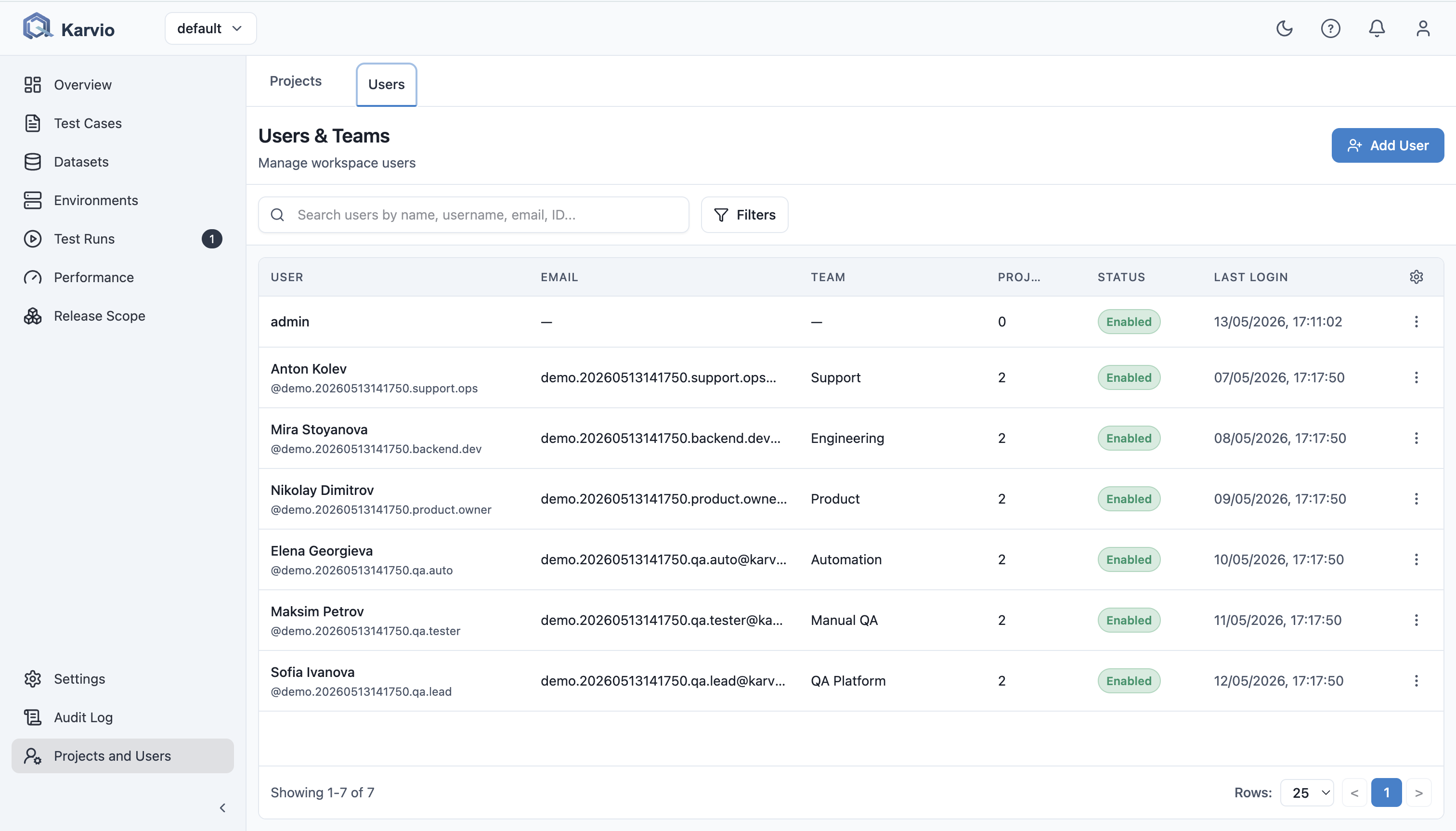
System users are accounts that can log in to Karvio. User management is available to system administrators under Settings → Users.
User List
The Users page shows all accounts in the system. Each row displays the username, email, team, system role, project count, last login date, and account status.
Search and Sort
Use the search bar to find users by username or email. Sort the list by creation date, username, or last login.
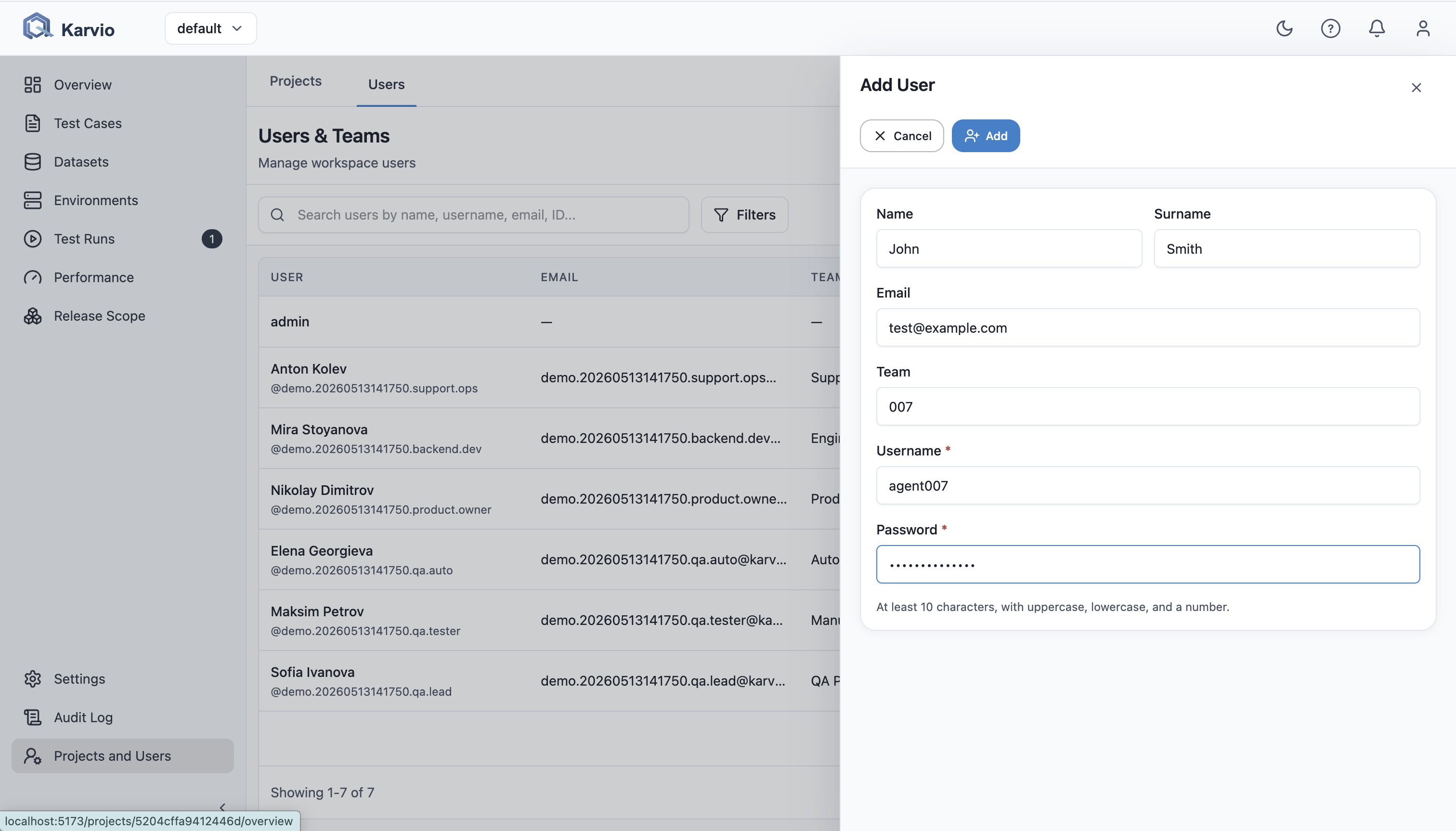
Create a User
Only system administrators can create new accounts.
- Go to Settings → Users.
- Click New User.
- Fill in the details:
| Field | Description |
|---|---|
| Username | Unique login name |
| User's email address | |
| Password | Initial password – the user should change it on first login |
| Team | Optional team or department name |
| Role | System role – User (default) or Admin. Only visible to administrators. |
- Click Create.
Enable or Disable a User
Disabled accounts cannot log in. Existing data (test results, comments) remains intact.
- Open the user from the list.
- Toggle the Active switch.
- Save.
Change a Password
Users can change their own password from their profile settings. Administrators can reset any user's password:
- Open the user from the Users list.
- Click Set Password.
- Enter and confirm the new password.
- Click Save.
System Role
Each account has a system-level role that controls access to administrative actions across the whole Karvio instance:
| System role | Capabilities |
|---|---|
| User | Default role. Access to projects is granted via project membership. Cannot manage other users, auth providers, or system settings. |
| Admin | Full system access: manage users (create, edit, enable/disable, reset password, delete), authentication providers, and system settings. Implicit access to all projects. |
Promote or Demote a User
Only system administrators can change another user's system role.
- Open the user from the Users list.
- Click Edit.
- Change the Role dropdown to
UserorAdmin. - Click Save.
Restrictions
- The built-in
adminaccount is protected: its role cannot be changed and the account cannot be disabled, renamed, or deleted. - Administrators cannot demote themselves. Ask another administrator to change your role, or promote a second admin first.
- The Role field and selector are hidden for non-admin users.
Project Members
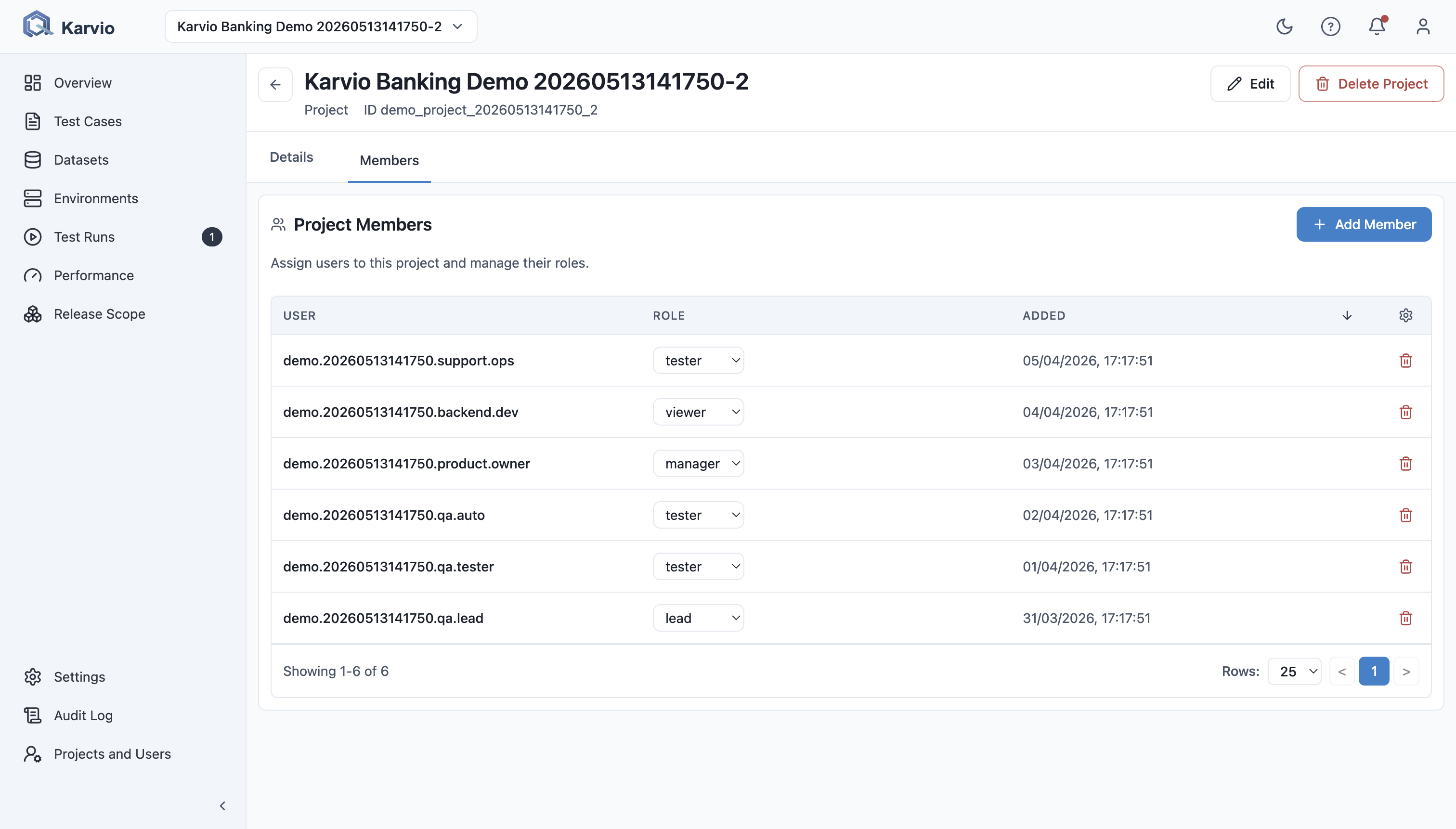
Access to a project's data is controlled by project membership. A user must be added to a project to see or interact with its test cases, runs, and other resources.
View Project Members
- Open the project.
- Go to Settings → Members.
The Members list shows each member's username, role, and date added.
Sort
Sort by: creation date, role, or username.
Add a Member
- In Settings → Members, click Add Member.
- Search for the user by username or email.
- Select a Role.
- Click Add.
Roles
| Role | Capabilities |
|---|---|
| Admin | Full project access: manage members, settings, and all data |
| Manager | Create and manage runs, plans, milestones, and test cases; cannot manage members or settings |
| Tester | Record test results, upload attachments, add comments |
| Viewer | Read-only access to all project data |
Note
Role names and exact permission boundaries may vary depending on your organization's Karvio configuration.
Change a Member's Role
- In Settings → Members, click the member you want to change.
- Select the new role from the dropdown.
- Click Save.
Remove a Member
- In Settings → Members, click the member.
- Click Remove from Project.
- Confirm.
Removing a member does not delete their historical contributions (test results, comments, etc.).
Permission Planning
| Team member type | Suggested role |
|---|---|
| QA lead managing scope and people | Admin or Manager |
| QA engineer executing and maintaining tests | Manager or Tester |
| Developer reviewing failures | Viewer or Tester |
| Product manager reviewing release readiness | Viewer |
| CI automation account | Dedicated user with only required project access |
API Keys
Users can create personal API keys for programmatic access. See Authorization for details.