Projects
Projects are the top-level organizational units in Karvio. All test cases, runs, plans, milestones, and environments belong to a single project. Access to data is always scoped to the project a user is a member of.
Use separate projects when data, users, release cycles, or reporting need to be isolated.
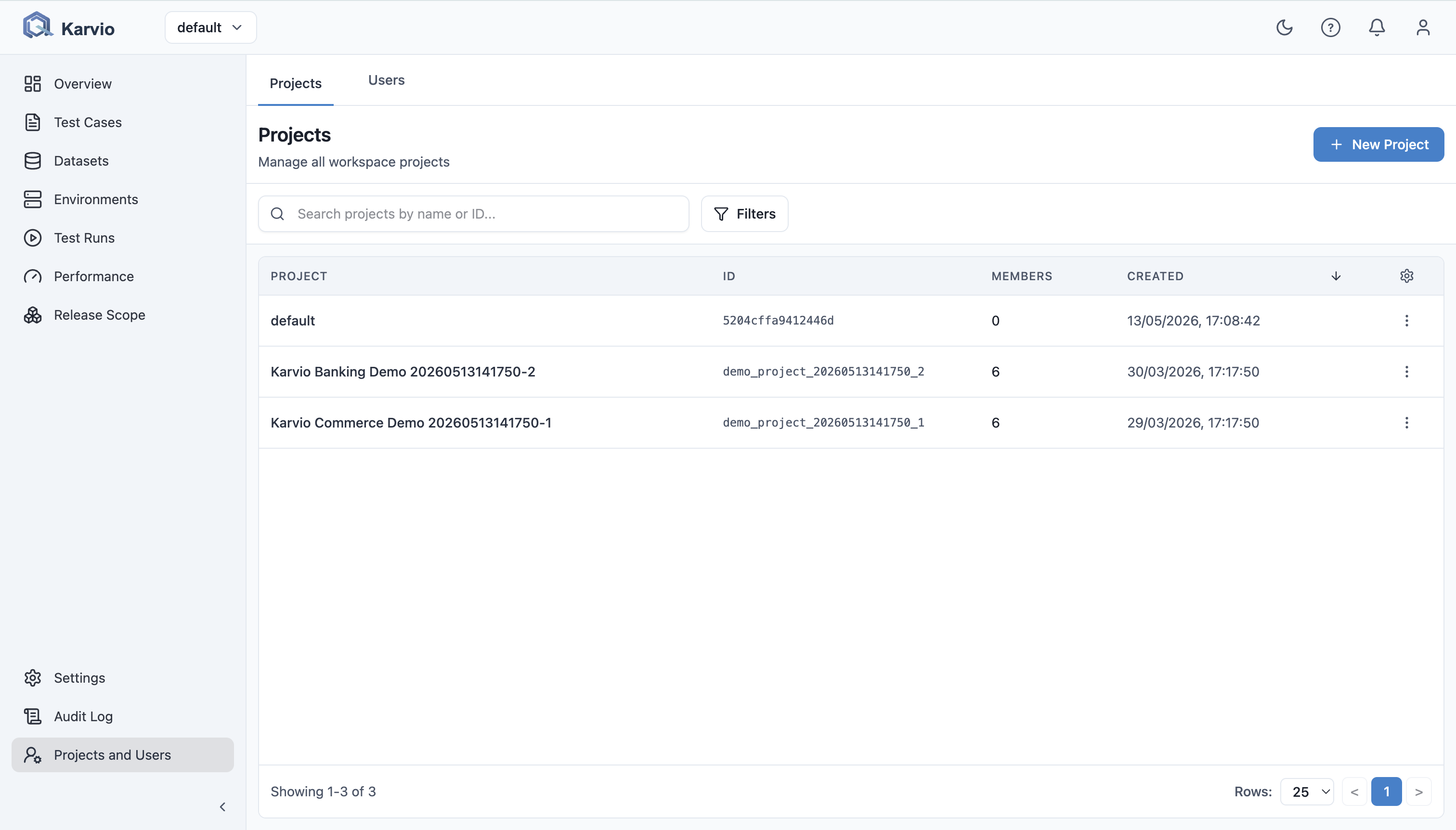
Project List
The main Projects page (shown after login) lists all projects you are a member of. Each row shows the project name, description, and member count.
Administrators see all projects in the system, regardless of membership.
Create a Project
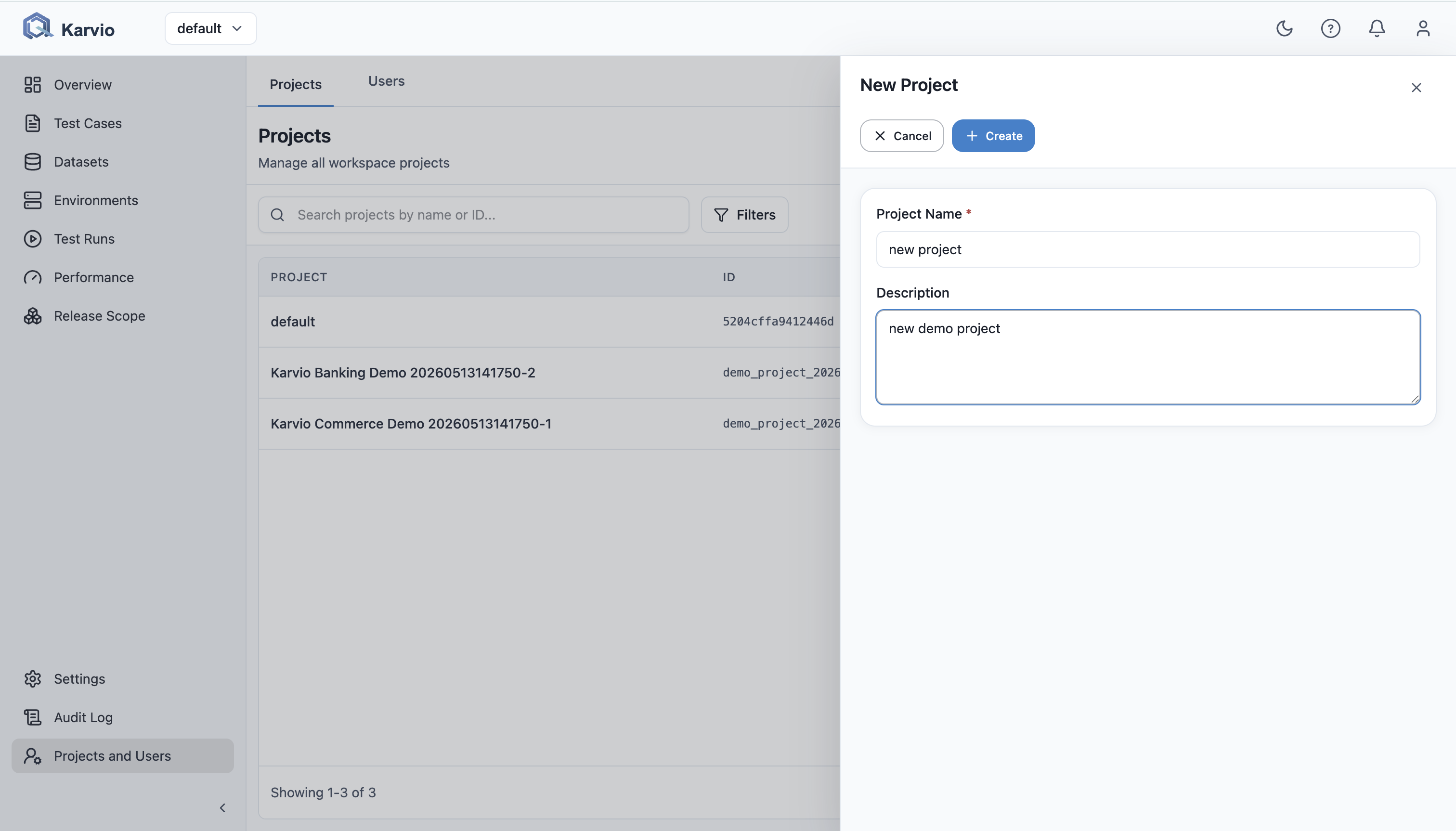
- On the Projects page, click New Project.
- Fill in the details:
| Field | Description |
|---|---|
| Name | The project name (required) |
| Description | Optional notes about the project's scope |
- Click Create.
You are automatically added to the project as an administrator.
Edit Project Settings
- Open the project.
- Go to Settings → General in the left sidebar.
- Update the Name or Description.
- Click Save.
Manage Project Members
See Users for full details on adding team members and assigning roles.
Project Setup Checklist
After creating a project:
- Add project members and assign roles.
- Create a first suite structure.
- Add environments used by the team.
- Create milestones for the active release or sprint.
- Configure Jira mapping if defects should be created from failures.
- Configure notifications if the team wants result alerts.
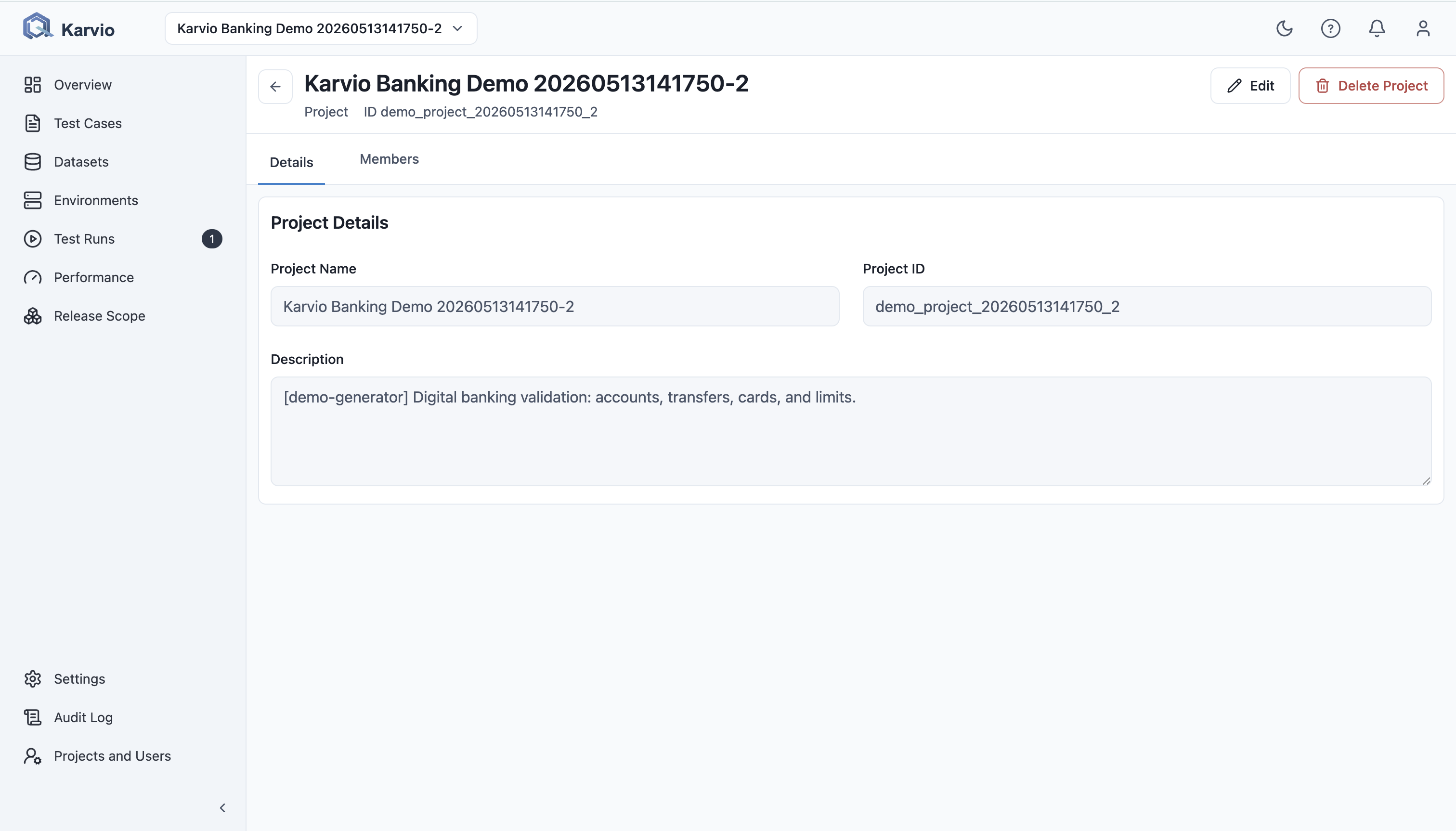
Delete a Project
Danger
Deleting a project permanently removes all test cases, runs, plans, results, milestones, environments, and attachments in that project. This action cannot be undone.
Only system administrators can delete projects.
- Open the project.
- Go to Settings → General.
- Scroll to the Danger Zone section.
- Click Delete Project.
- Type the project name to confirm, then click Delete.