Audit Logs
Karvio maintains a complete, tamper-evident audit trail of all changes made to entities in the system. Every create, update, and delete action is recorded with the user who made it and the exact time it occurred.
Use audit logs to investigate unexpected changes, verify administrative actions, and support compliance reviews.
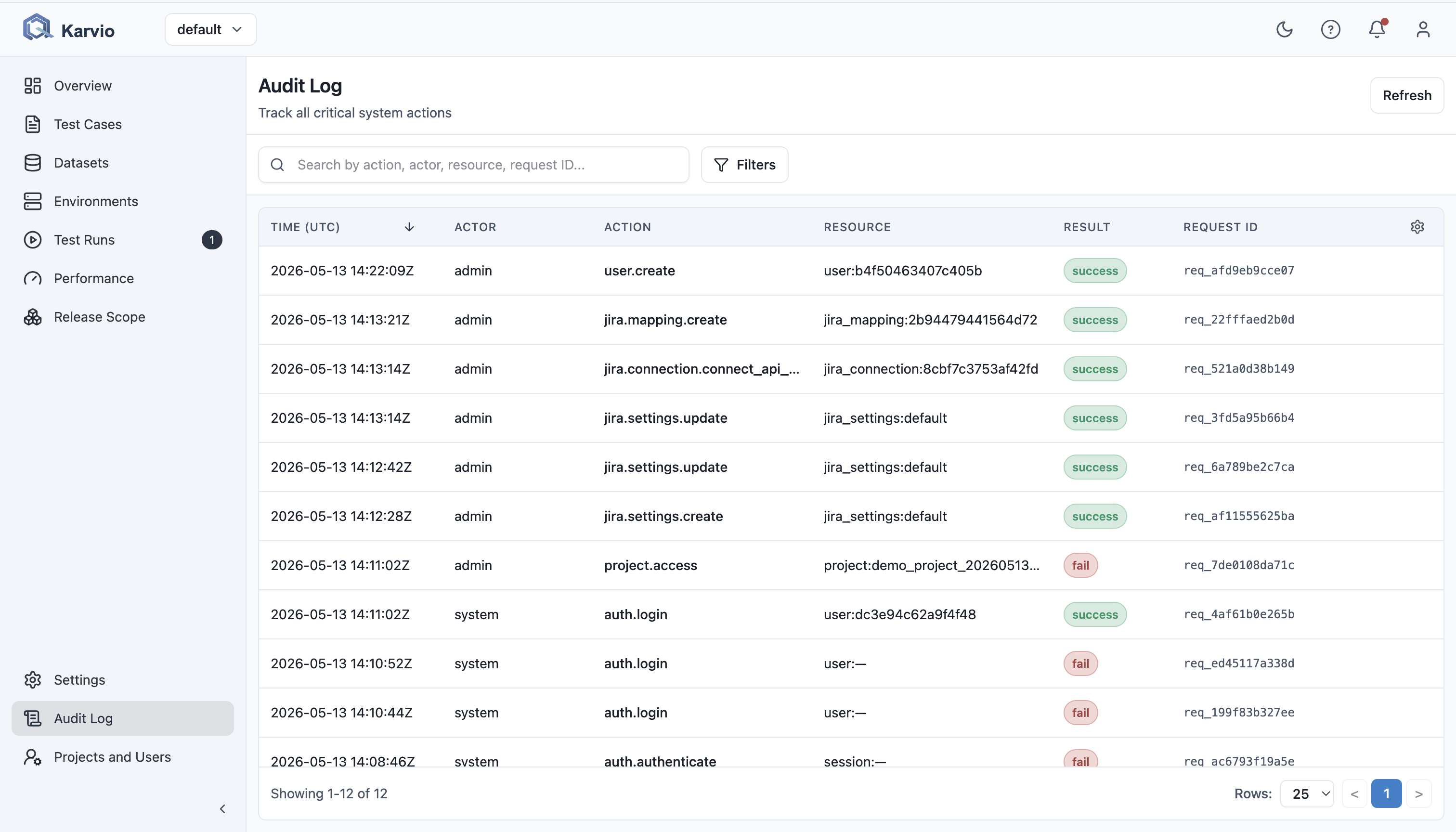
Opening Audit Logs
Click Audit Logs in the left sidebar. The log shows entries for the current project in reverse chronological order (newest first).
What Is Logged?
Audit logs capture changes to all major entities, including:
- Test cases and test steps
- Test runs and run item results
- Test plans
- Milestones
- Environments
- Products and components
- Datasets
- Project membership changes
- API key creation and revocation
- Integration settings
Each entry records:
| Field | Description |
|---|---|
| Entity Type | The type of object that was changed (e.g., Test Case, Run Item) |
| Entity Name | The name or identifier of the changed object |
| Action | Created / Updated / Deleted |
| User | Who made the change |
| Timestamp | Exact date and time (UTC) |
| Changes | A diff showing the previous and new values (for updates) |
Filtering the Log
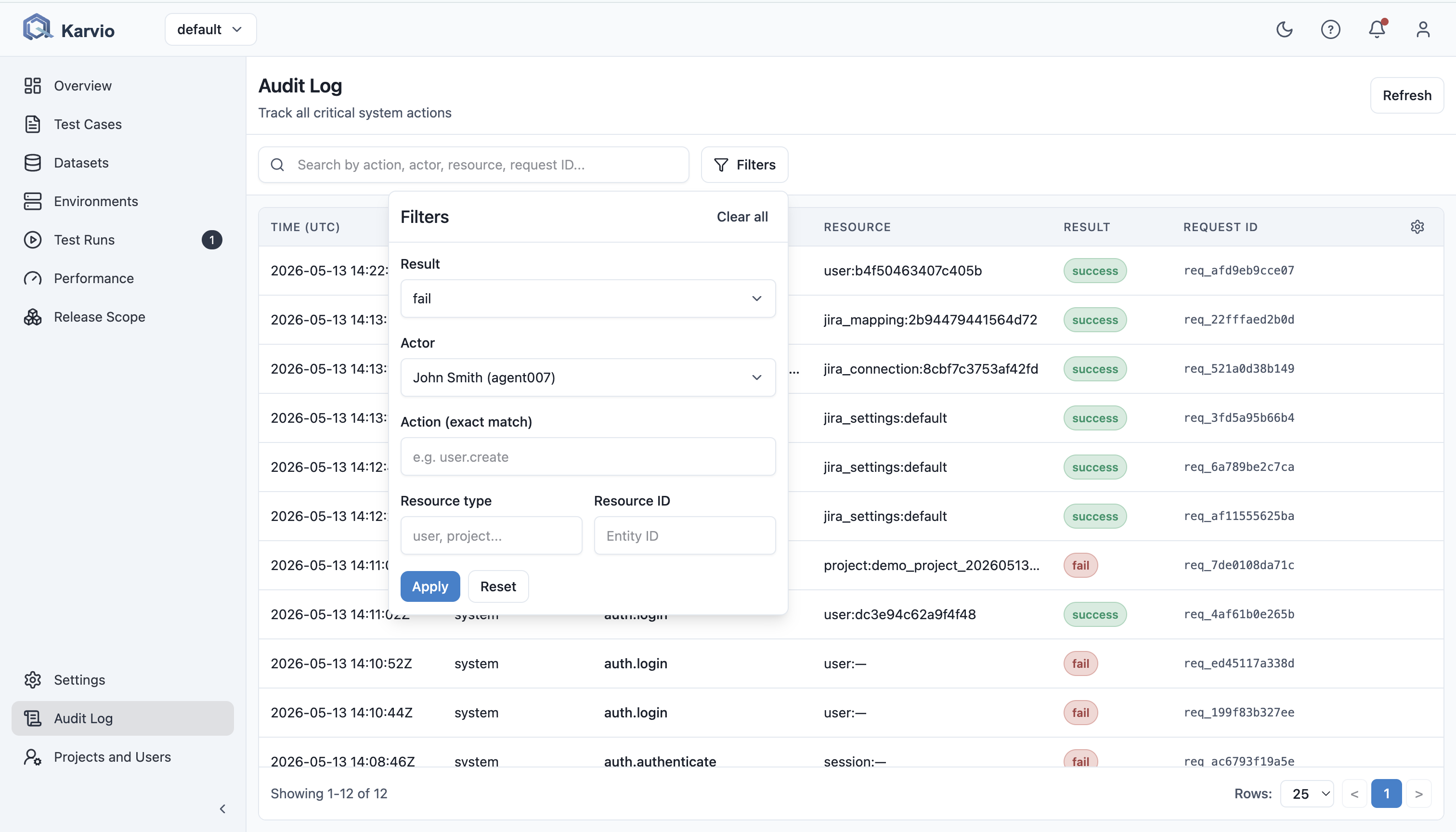
Use the filter controls to narrow the log:
| Filter | Description |
|---|---|
| Entity Type | Show only changes to a specific type of object |
| User | Show only changes made by a specific team member |
| Action | Created / Updated / Deleted |
| Date Range | Show entries within a specific time window |
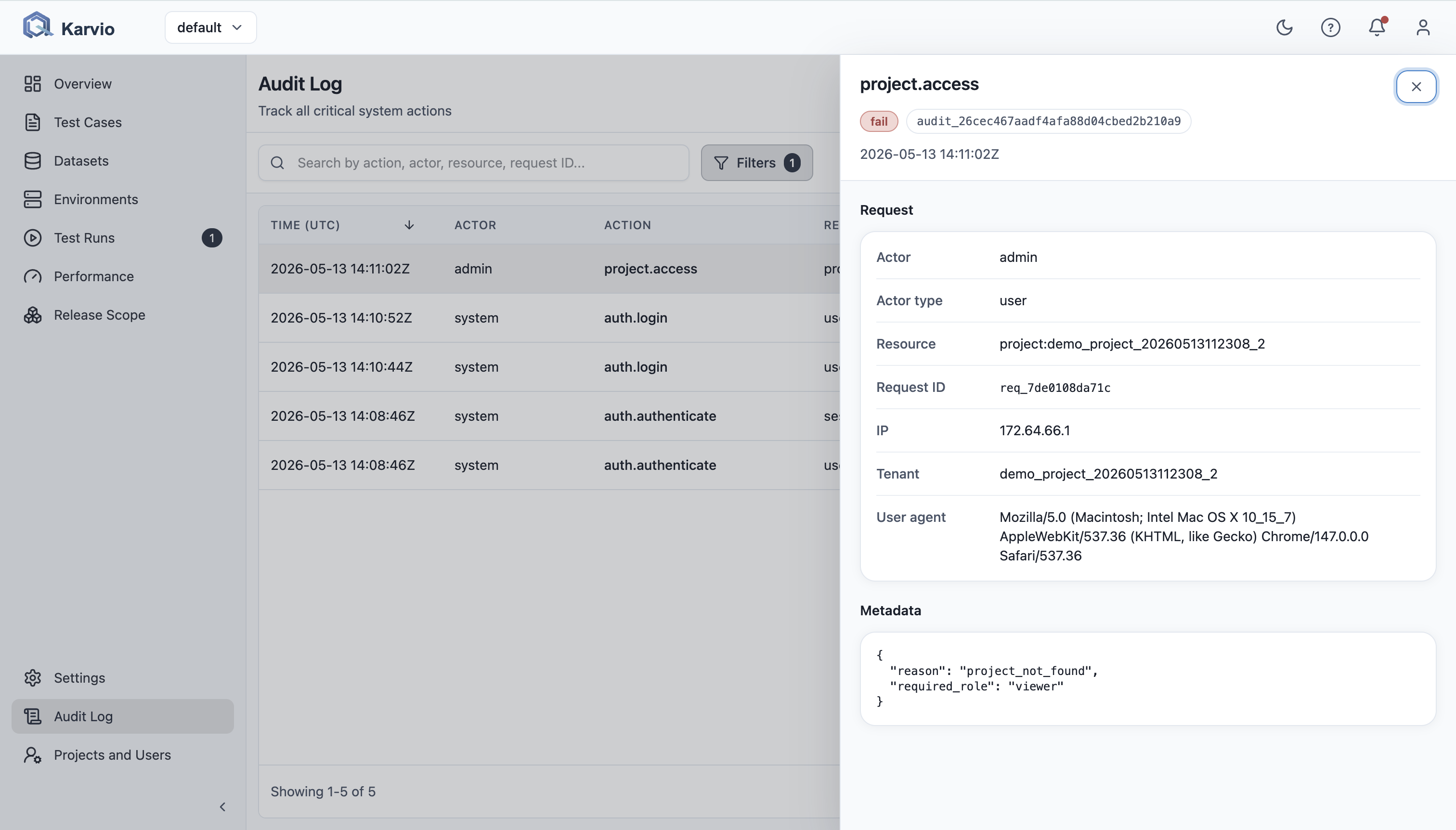
Reading a Log Entry
Click any row in the audit log to expand it and see the full details, including a field-by-field diff for update actions.
For example, if a test case priority was changed from Medium to High, the log entry shows:
Retention Policy
Audit log entries are retained for a configurable number of days. The default is 365 days. Entries older than the retention window are automatically deleted.
Administrators can adjust the retention period in the system configuration (AUDIT_RETENTION_DAYS).
Access Control
All project members can view the audit log for their project. System administrators can view logs across all projects.
Investigation Tips
- Start with the affected entity type and date range.
- Filter by user if the change likely came from a known owner or automation account.
- For bulk edits, inspect multiple adjacent log entries with the same timestamp.
- For deleted objects, use the audit entry to confirm who deleted the record and when.
- Pair audit logs with run history when investigating unexpected execution results.